
Reset your password
Learn how to update your Online Services password if you’ve forgotten it.
Web browser
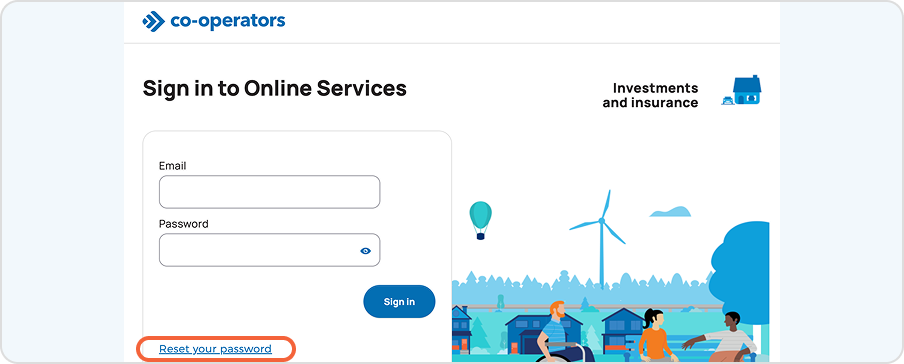
- Select Reset your password on the sign in page.
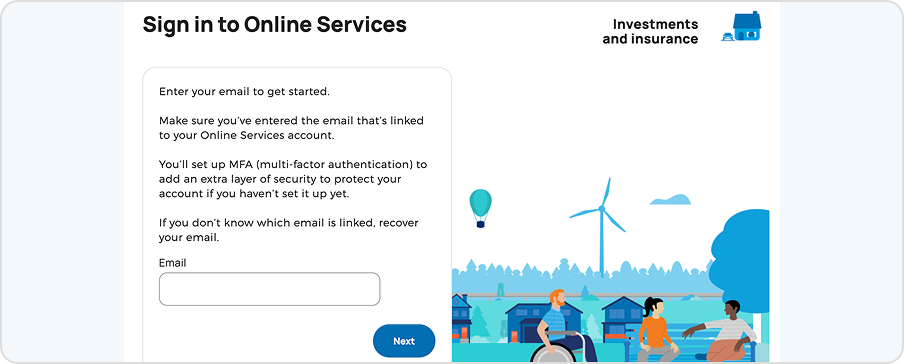
- Enter the email linked to your account.
Unsure which email is linked to your account?
Select Recover your email.
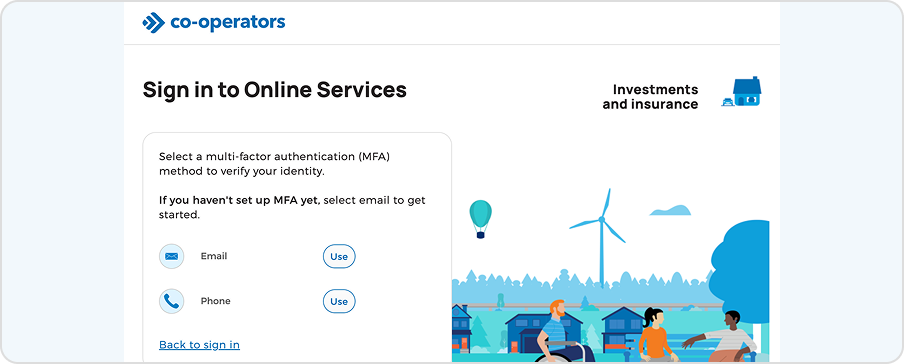
- Verify your identity by selecting a multi-factor authentication (MFA) method: Receive a code via the email linked to your account or the phone number you used to set up MFA.
Haven't set up MFA?
Continue with your email. You’ll finish setting up MFA after resetting your password.
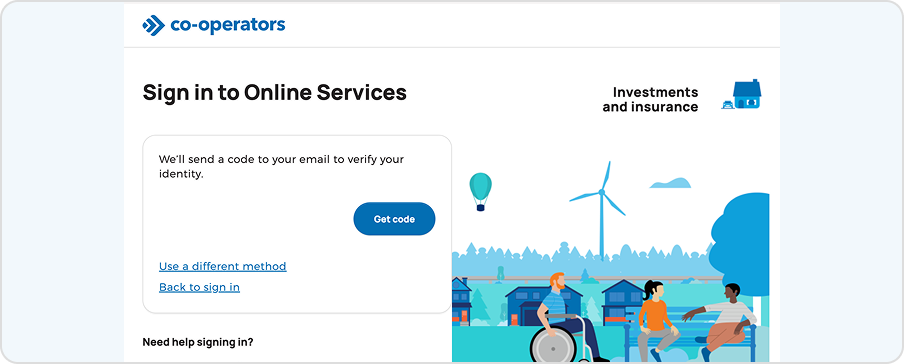
- Select Get code.
We’ll send a verification code via your selected delivery method (email, text or voice message). Your code expires in 5 minutes.
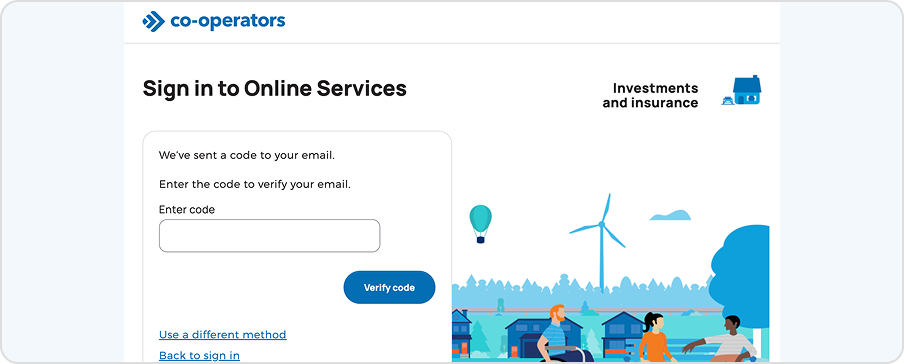
- Enter your verification code.
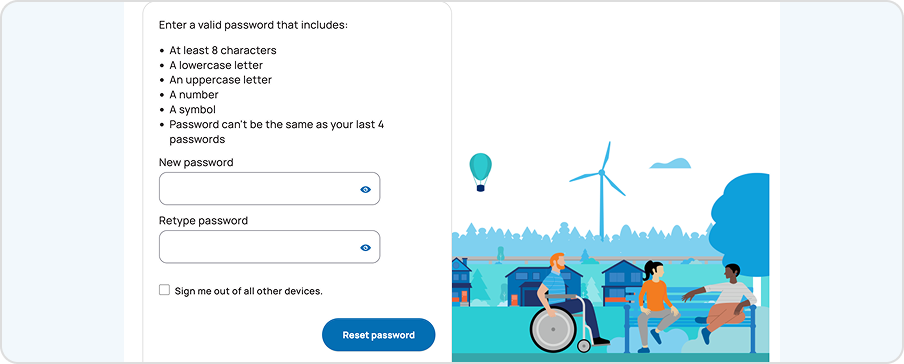
- Your new password must be at least 8 characters and contain at least one of the following:
- Capital letter
- Lower case letter
- Number
- Symbol
You cannot reuse a previous password.
Tip: We recommend choosing a unique password.
Remember, longer is always better.
Note: If you haven't completed setting up MFA, please follow the next steps.
Complete MFA enrolment (if applicable)
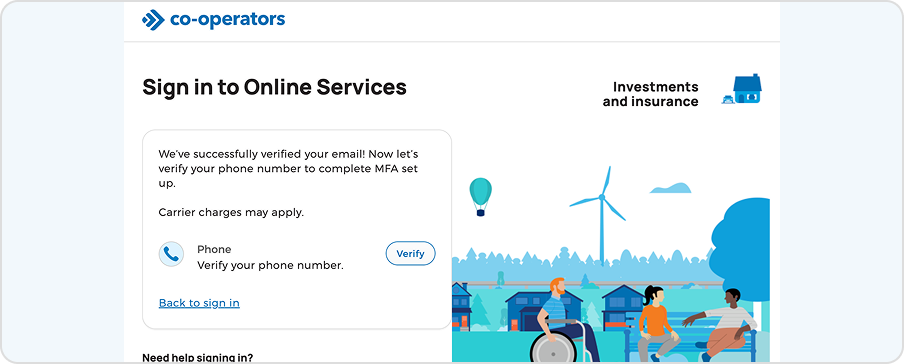
- Select Verify to register a phone number.
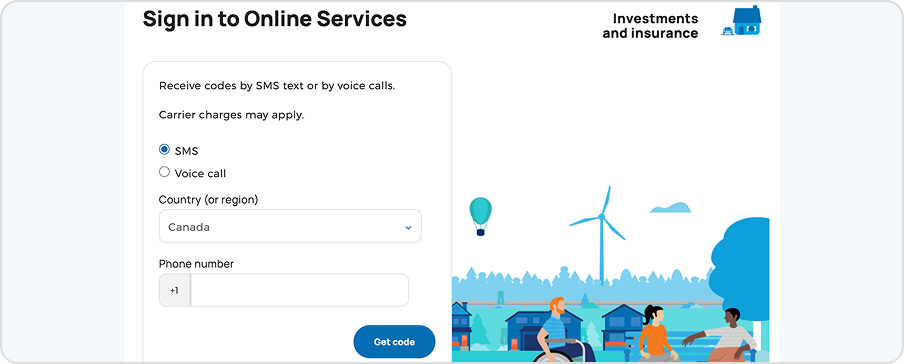
- Choose a delivery method and enter a phone number to which you can receive a security code via SMS or voice message.
We’ll send a code via your selected delivery method. It expires in 5 minutes.
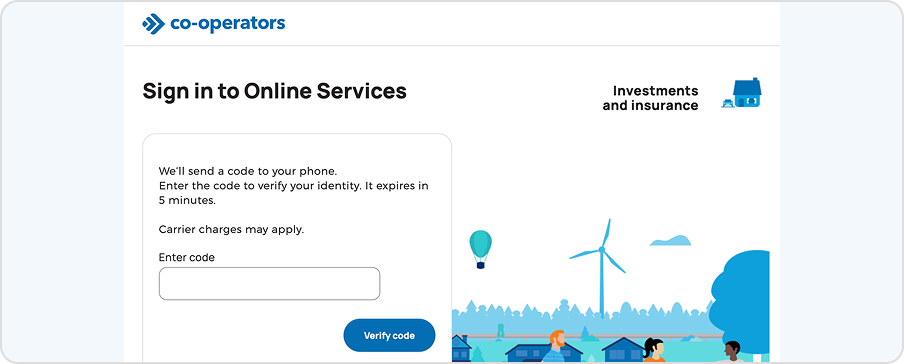
- Enter your code to complete setup.
Reach out for support
Still have questions? We’re happy to help.
Monday to Friday, 9 a.m. to 5 p.m. ET